Installation Guides
Pick your device below and follow the steps to start streaming iNSTALLiPTV.
Install the Downloader app first, then use it to sideload your preferred IPTV player.
- From the home screen, hover over the Find option.

- Click Search.
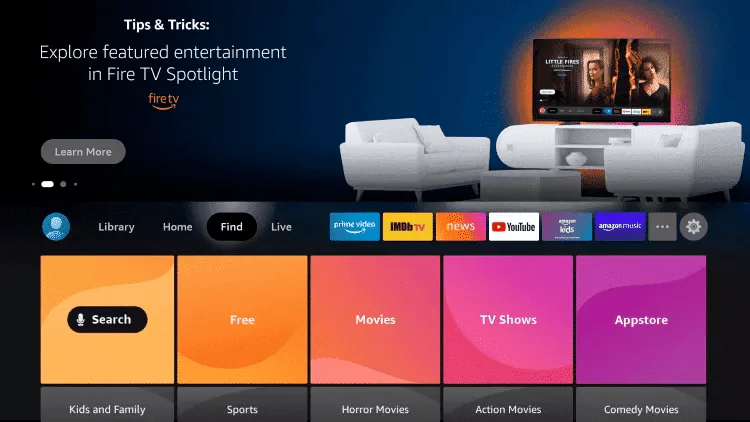
- Search for and select Downloader.
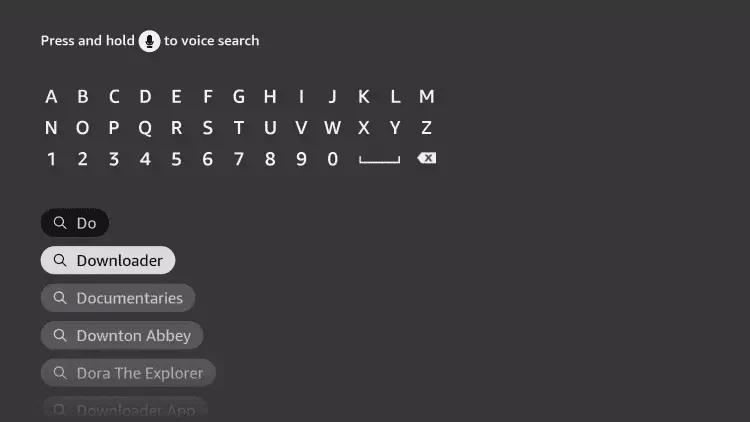
- Choose the Downloader app (Orange icon) and click Download.
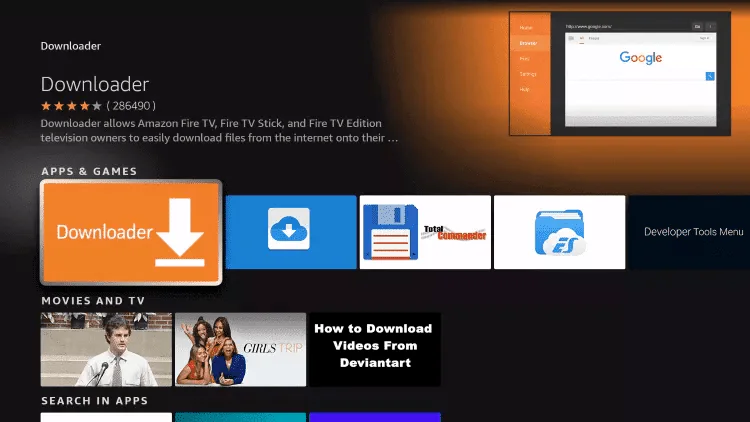
- Go to Settings → My Fire TV → Developer Options → Install Unknown Apps and turn Downloader ON.
- Open Downloader and enter one of the codes below to install your preferred app:
Android / User & Pass
aftv.news/1223525
Best for high-end devices
Fast & User Friendly
Premium Interface
- Click Go and wait for the file to download.
- Click Install then Open.
- Login with the Username & Password sent to your email.
Follow steps 1–5 from Method 1 to install Downloader, then:
- Enter URL:
https://shorturl.at/hsMW1

- Click Install and open the app.
- Go to Account to see your Device ID and Key.
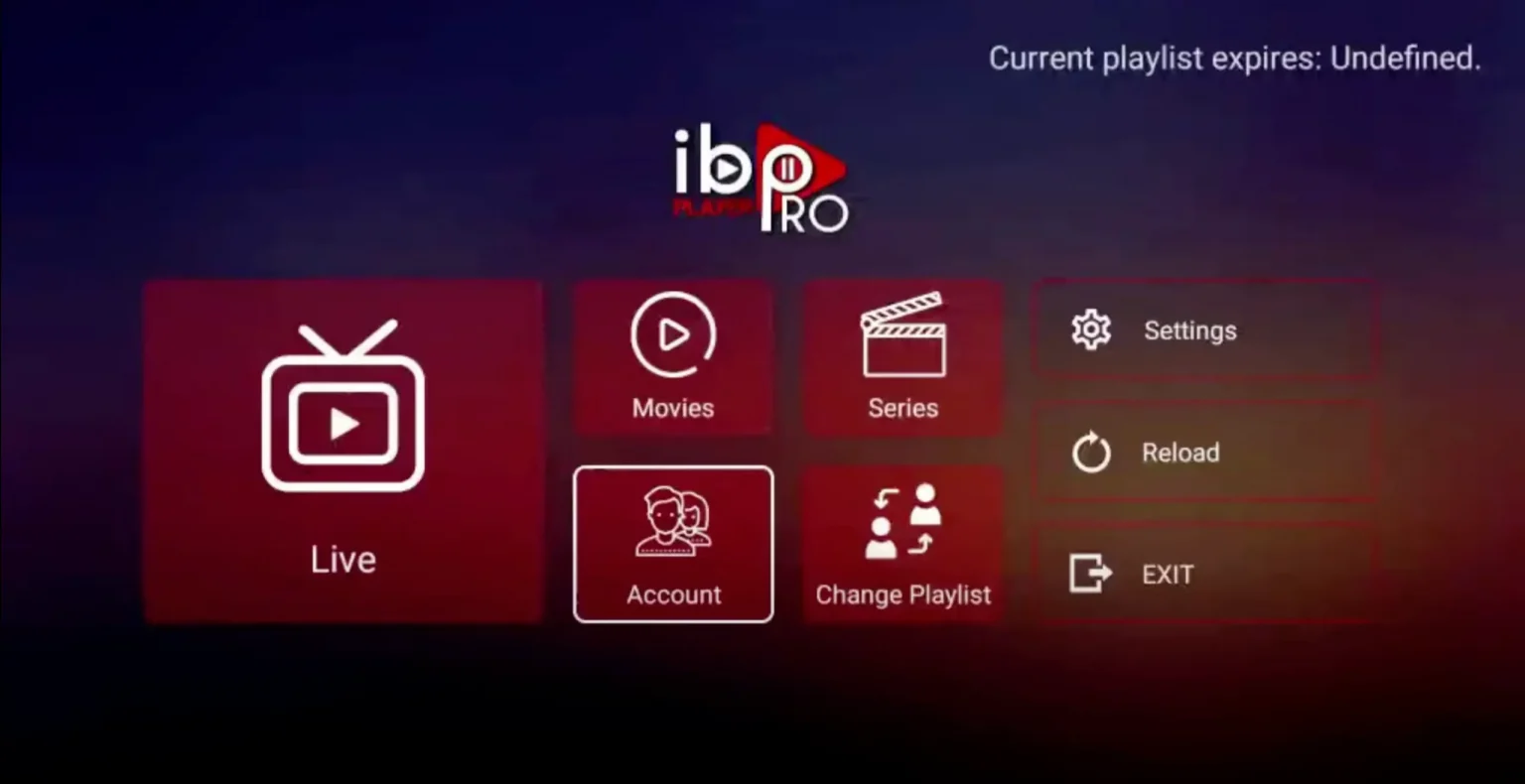
- On your phone/PC, visit iboproapp.com → Manage Playlists.
- Login with your Device ID & Key.
- Click Add XC Playlist.

- Enter Playlist Name:
iNSTALLiPTV. Enter the Server URL, Username & Password from your email.

- Restart the app on your TV.
- Open Downloader and enter:
https://www.iptvsmarters.com/smarters.apk
Alternative:https://bit.ly/3sgJDAK - Click Go and wait for the download.
- Click Install then Done.
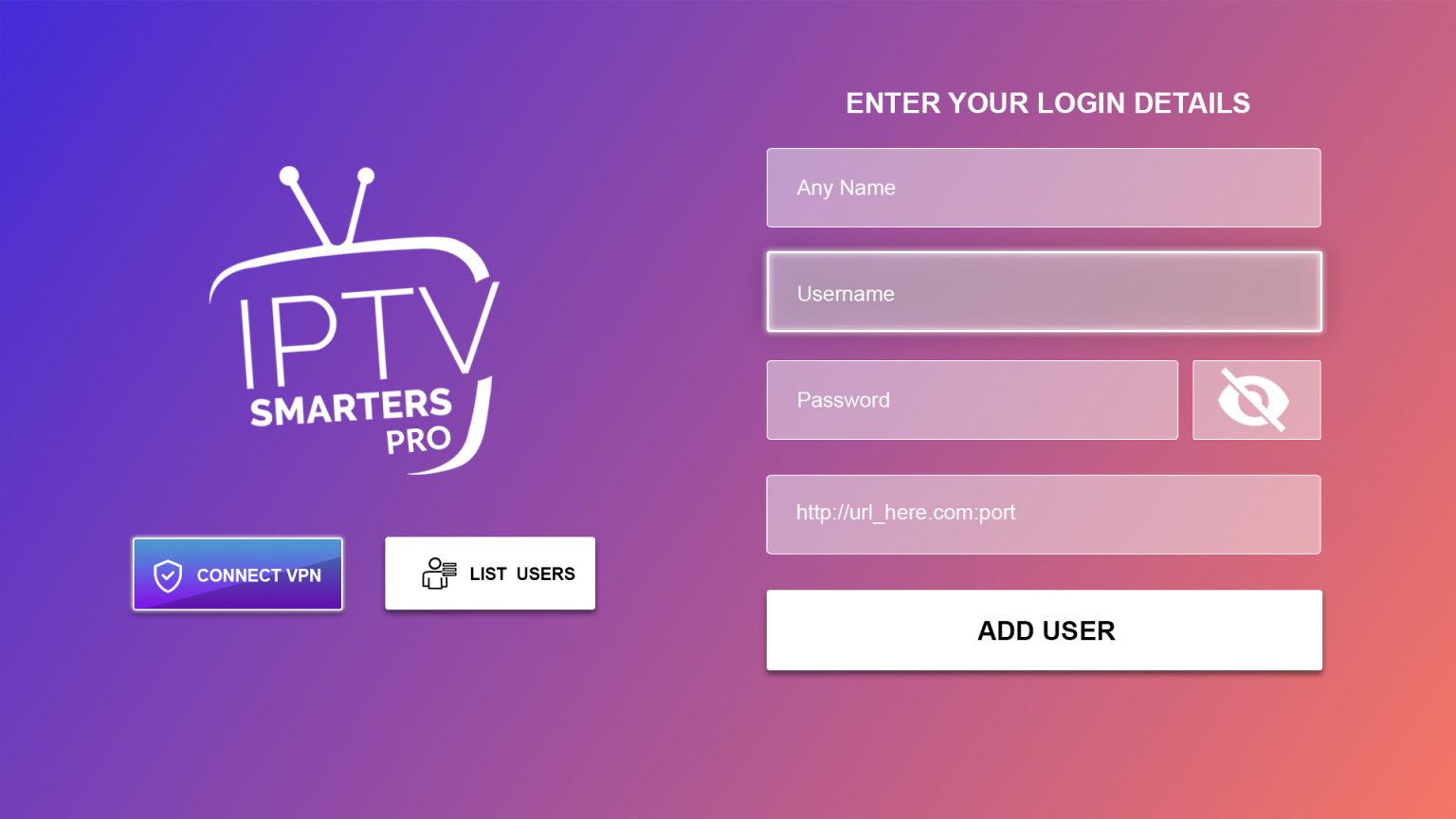
- Open Smarters Pro → select Login with Xtream Codes API.

- Enter the Server, Username & Password from your email.
- Open Downloader and enter Code:
366972or719692. - Download and install TiviMate.
- Open TiviMate → select Add Playlist.
- Select Xtream Codes login → Next.
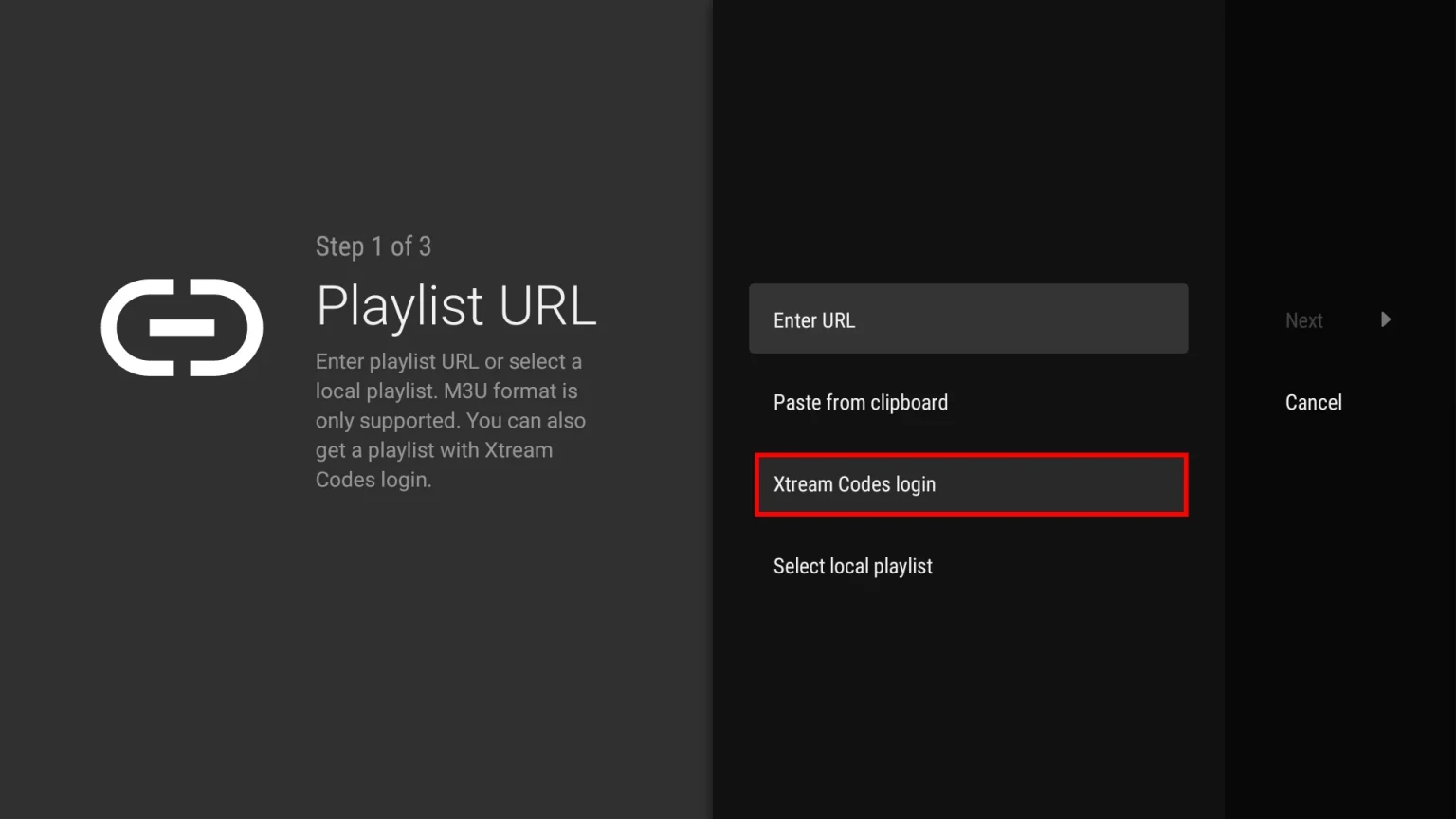
- Enter Server Address, Username & Password from your email.


Full 2026 step-by-step guide — covers Firestick, Android TV & Android TV Box.
Cast iNSTALLiPTV from your phone to your Fire TV Stick using Web Video Cast.
- Install Web Video Cast (free) from the App Store or Google Play.
- Open the app, tap Menu (☰) and select IPTV.
- Tap (+) and paste your M3U URL from your email.
- Name the playlist
iNSTALLiPTVand save. - Tap the Cast Icon and select your Fire TV Stick.
- Choose a channel and it streams to your TV instantly.
- On your Android TV, open the Google Play Store.
- Search for "IBOGOLD" and tap Install.
- Open the app → tap Account to get your Device ID and Key.
- On your phone or PC, go to iboproapp.com → Manage Playlists.
- Log in using your Device ID & Key.
- Click Add XC Playlist.
- Enter Playlist Name:
iNSTALLiPTV. Then enter the Server, Username & Password from your welcome email. - Restart IBOGOLD on your Android TV and enjoy.
- Open the Google Play Store on your Android TV.
- Search for "IBO Player Pro" and tap Install.
- Open the app → tap Account to find your Device ID and Key.
- On your phone or PC, go to iboproapp.com → Manage Playlists.
- Log in using your Device ID & Key, then click Add XC Playlist.
- Enter Playlist Name:
iNSTALLiPTV. Enter the Server, Username & Password from your email. - Restart IBO Player and start streaming.
- Open the Google Play Store and search for "IPTV Smarters Pro". Install it.
- Open the app → select Login with Xtream Codes API.
- Enter the Server, Username & Password from your email.

- Click Add User and start streaming.
Only needed if the app is not available in your country's Play Store.
- Go to Settings → Device Preferences → Security & Restrictions and enable Unknown Sources.
- Install the Downloader app from the Play Store.
- Open Downloader and enter one of the codes from Method 1 (Fire TV section).
- Download and install the APK.
- Open the app → tap Account to find your Device ID & Key.
- On your phone or PC, go to iboproapp.com → Manage Playlists and log in.
- Click Add XC Playlist, name it
iNSTALLiPTV, and add your credentials from your email. - Restart the app and start streaming.
Full 2026 guide — covers Firestick, Android TV & Android TV Box setup.
Cast iNSTALLiPTV from your phone to your Android TV using Web Video Cast.
- Install Web Video Cast (free) from the App Store or Google Play.
- Open the app, tap Menu (☰) and select IPTV.
- Tap (+) and paste your M3U URL from your email.
- Name the playlist
iNSTALLiPTVand save. - Tap the Cast Icon and select your Android TV.
- Choose a channel — it streams to your TV instantly.
- Go to the Roku Channel Store. Search for "IBO Player Pro" and select Add Channel.

- Open the app → click Account to find your Device ID and Key.

- On your phone/PC, go to iboproapp.com and click Manage Playlists.

- Login using your Device ID & Key.
- Click Add XC Playlist.
- Enter Playlist Name:
iNSTALLiPTV. Then enter the Server, Username & Password from your email.

- Restart the IBO Player app on your Roku TV.



Follow this quick video guide to set up IBO Player Pro on Roku in minutes.
Cast iNSTALLiPTV directly from your phone to your Roku using Web Video Cast.
- Install Web Video Cast (free) from the App Store or Google Play.
- Open the app, tap Menu (☰) and select IPTV.
- Tap (+) and paste your M3U URL from your email.
- Name the playlist
iNSTALLiPTVand save. - Tap the Cast Icon and select your Roku TV.
- Open the playlist, choose a channel, and it plays on your TV!
Works on: Android TV, LG Smart TVs (webOS), Samsung Smart TVs (Tizen), Roku.
- Open your device's App Store.
- Search for "ORA IPTV Player" and install it.
- Launch the app and enter your Playlist URL or Xtream Codes from your email.
- Click Connect and enjoy streaming!
- On your Samsung or LG TV, open the App Store / Content Store.
- Search for "IBO Player Pro" and install it.
- Open the app → go to Account to get your Device ID and Key.
- On your phone/PC, go to iboproapp.com → Manage Playlists and log in.
- Click Add XC Playlist, name it
iNSTALLiPTV, and enter your Server, Username & Password. - Restart IBO Player on your TV and start streaming.
- Search for "IPTV Smarters Pro" in the Samsung/LG Content Store and install it.
- Open the app → select Login with Xtream Codes API.
- Enter your Username, Password & Server URL from your email.
- Click Add User and start streaming.
- Install Smart IPTV from the Samsung/LG Content Store.
- Open it — note your MAC Address shown on screen.
- On your phone/PC, go to siptv.eu/mylist.
- Enter your MAC address and paste your M3U Playlist URL from your email.
- Restart the app on your TV.
- Download the official IPTV Smarters app from their website.
- Install, open, and select Add New User.
- Select Login with Xtream Codes API.
- Enter your Server URL, Username & Password from your email.
- Click Add User and start watching.
VLC is free and available on Windows, Mac, and Linux.
- Download and install VLC from videolan.org.
- Open VLC → go to Media → Open Network Stream.
- Paste your M3U URL from your email and click Play.
All of these are available on the App Store. Choose any one and log in with Xtream Codes API.
Free on App Store
Free on App Store
Available on App Store
- Download your chosen app from the App Store.
- Open the app and select Xtream Codes API login.
- Enter your Server URL, Username & Password from your email.
- Tap Add User / Connect and start watching.
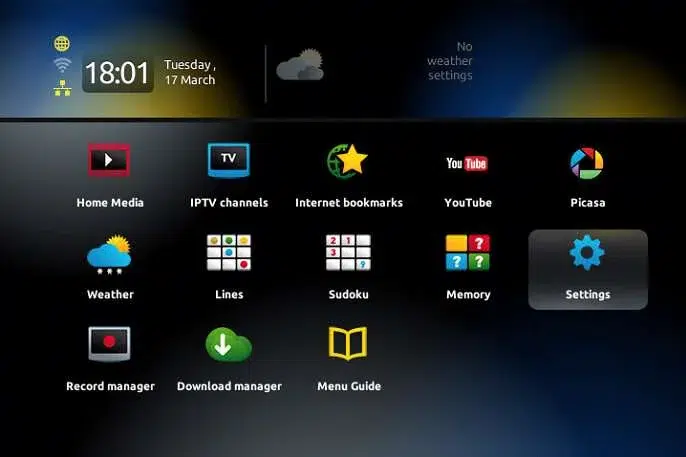
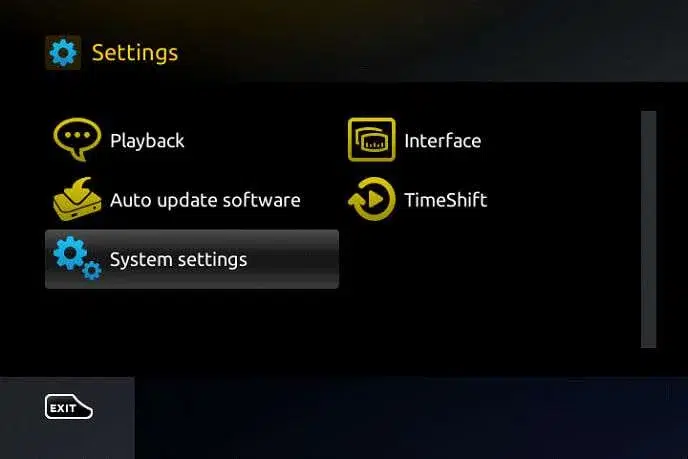
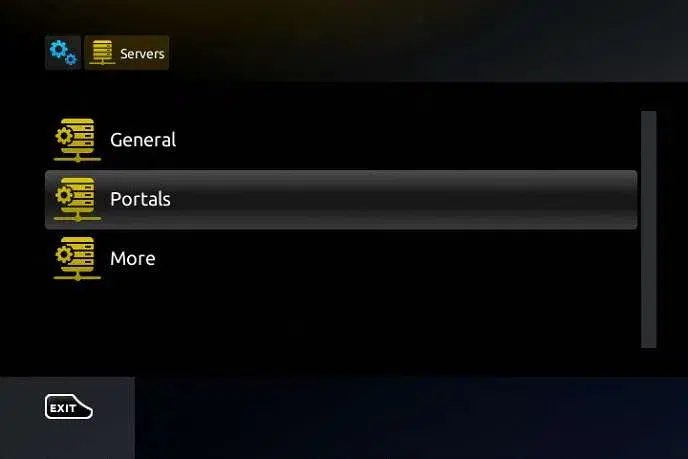
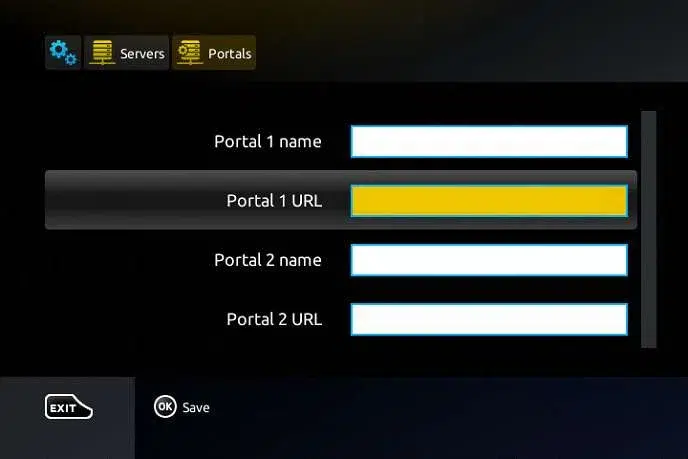
- Go to Settings → System Settings → Servers → Portals.
- Set Portal 1 Name:
iNSTALLiPTV - Set Portal 1 URL to the Portal URL from your email.
- Send us your MAC Address (found on the sticker underneath the box) for activation.
- Save settings, go back, and select Restart Portal.
- Download STBEmu (Free or Pro) from the Play Store.
- Open App → Settings → Profiles → Add Profile.
- Select Portal Settings → enter the Portal URL from your email.
- Go back to STB Configuration → find your MAC Address.
- Send us this MAC Address to activate your subscription.
- Restart the app/portal to load channels.
- Open MyTVOnline 2 or 3.
- Go to Content Manager → Add Portal.
- Enter Nickname:
iNSTALLiPTV. - Enter the Portal URL provided in your email.
- Make sure Login Required is unchecked (MAC activation is used).
- Send us your MAC Address (starts with 00:1A:79...) for activation.
- Click Connect.


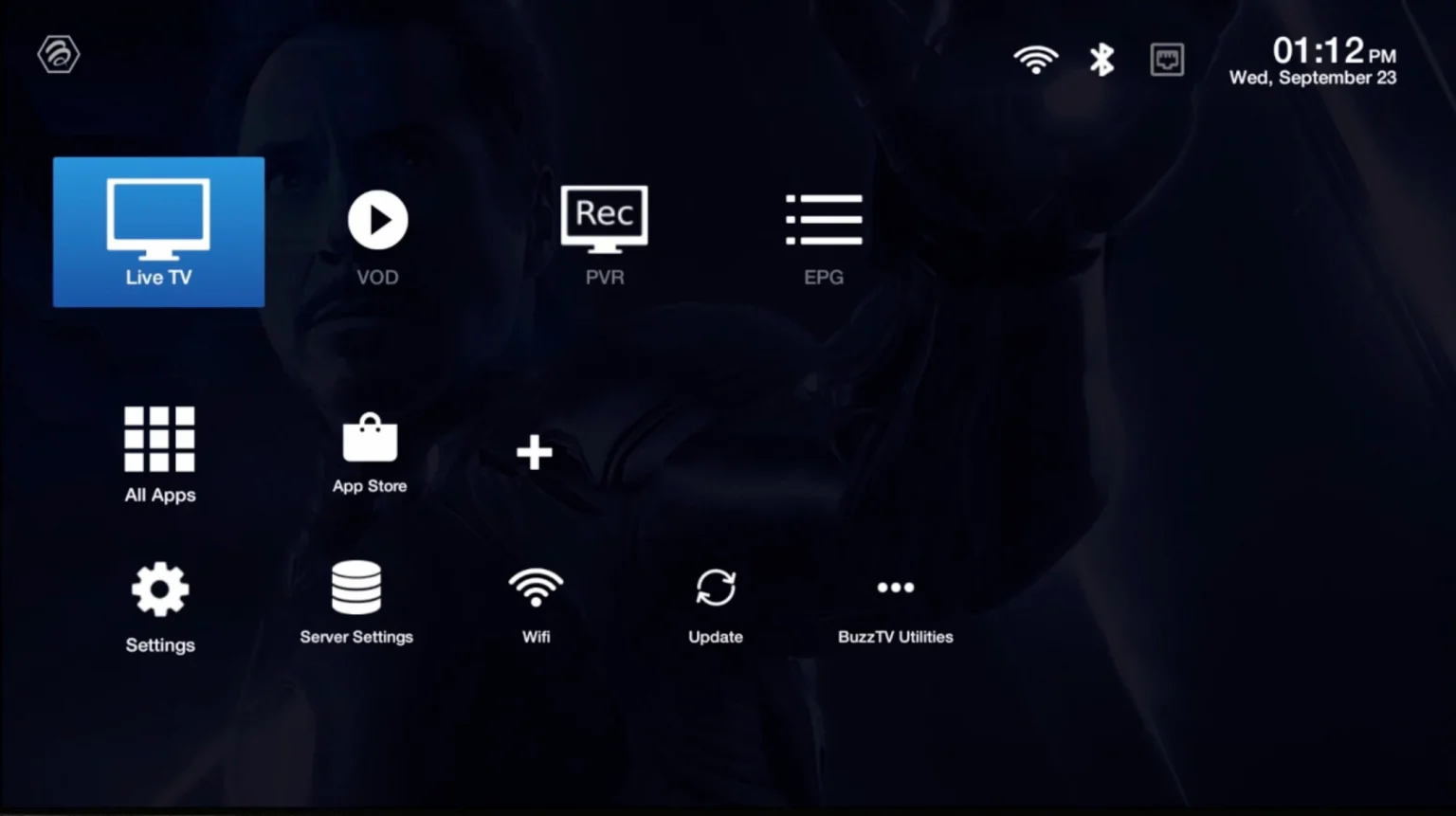
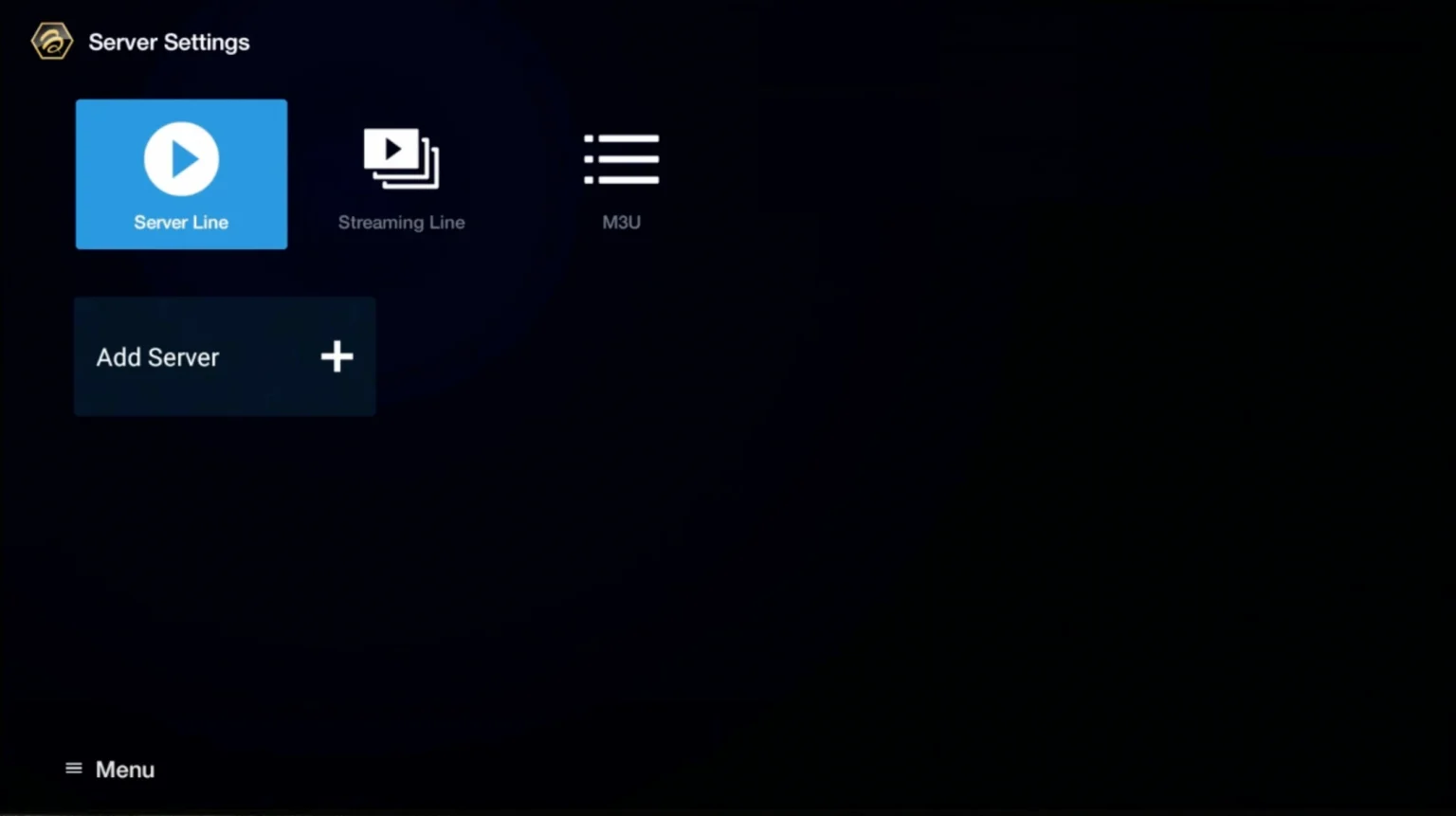
- Go to Live TV → Server Line / MAC Server.
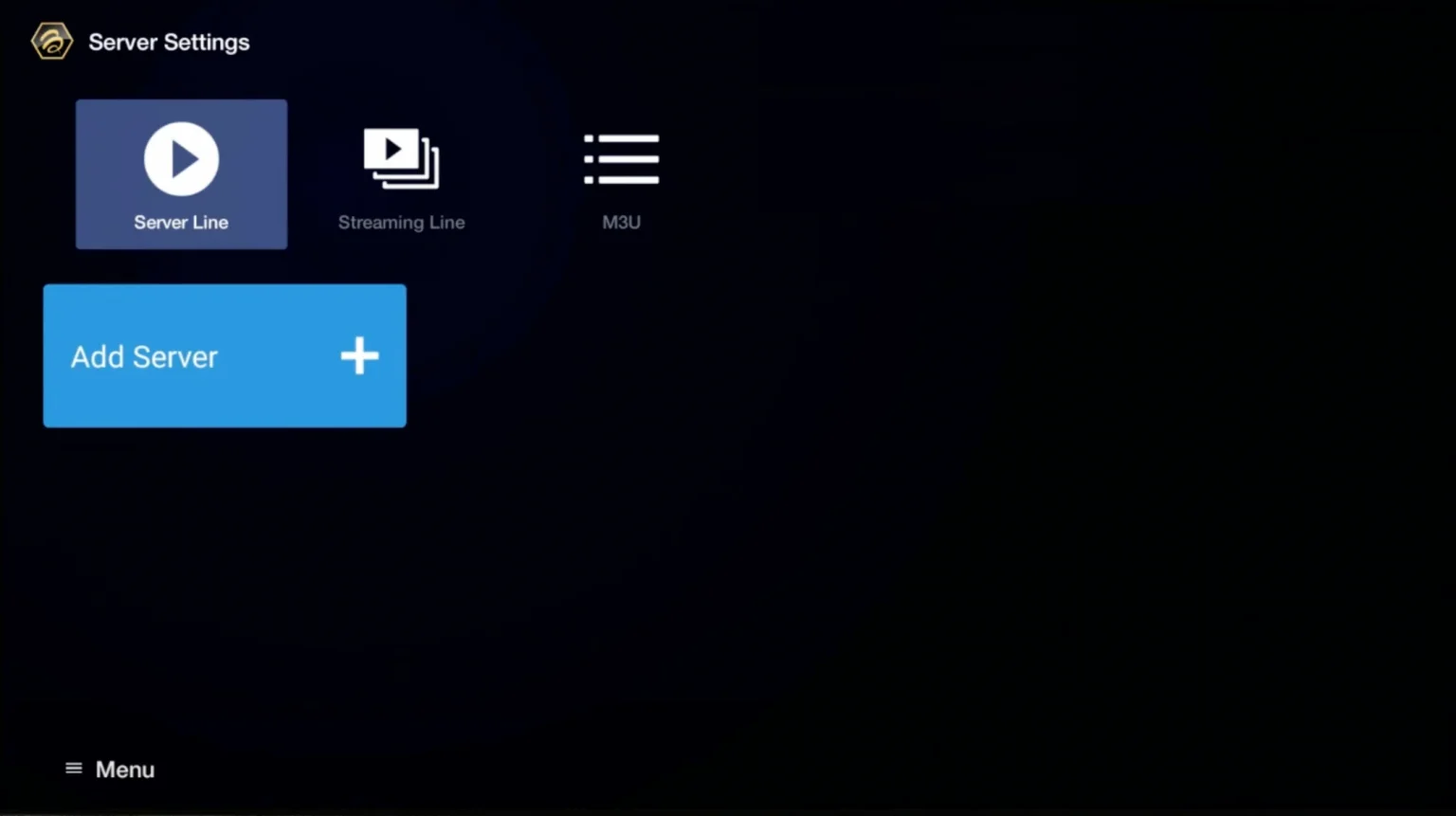
- Select Add Server.
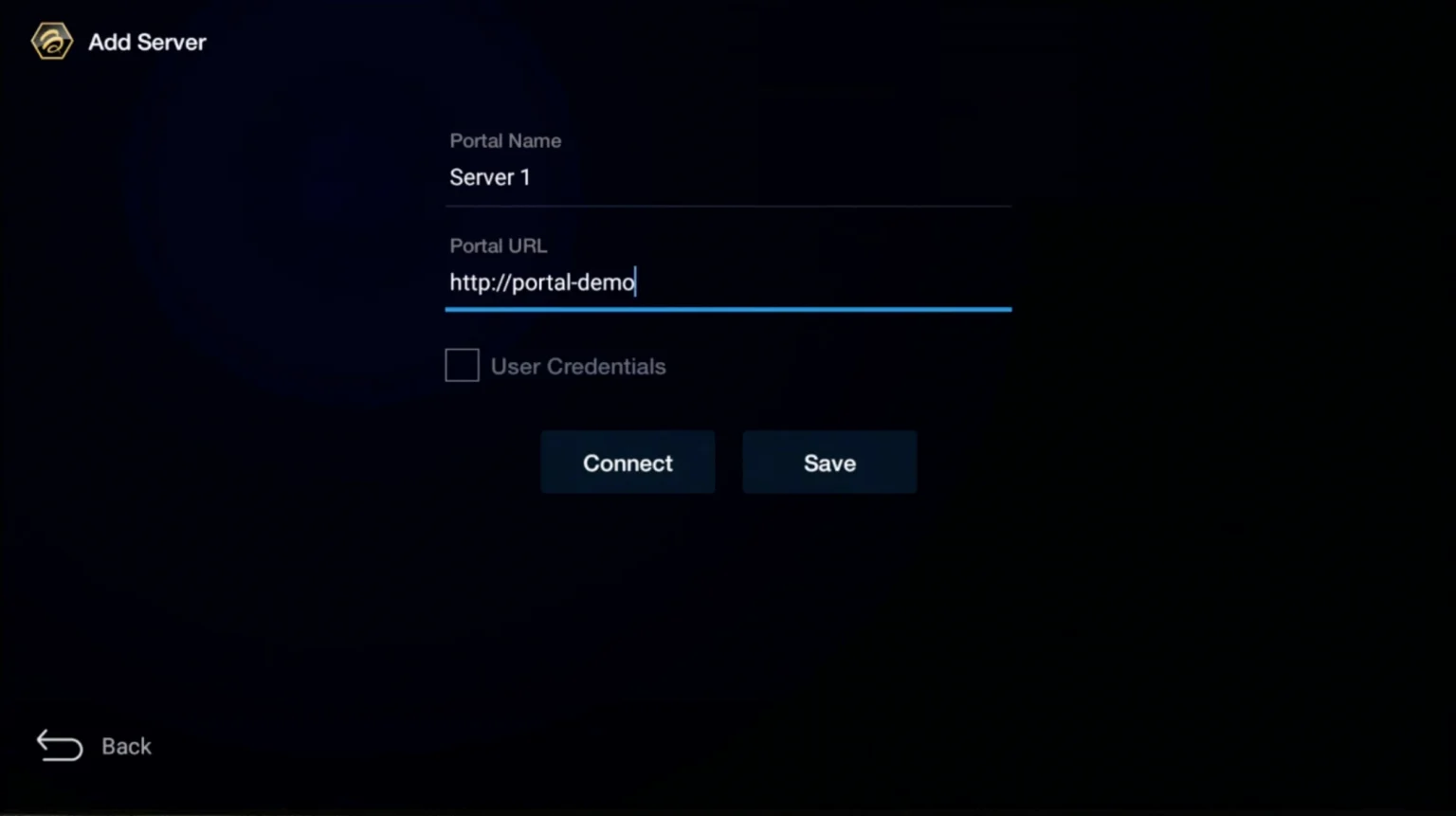
- Enter Server Name:
iNSTALLiPTVand paste the Portal URL from your email. - Send us your MAC Address for activation.
- Save and Connect.